

Snap is a package that offers an easy way to install applications in Linux distributions. This guide will walk you through the installation of Snap on Linux Mint 22.
Snap packages, snappy and snapd
Snap packages (snaps) are software packages that have been bundled with all their dependencies for easy installation, initially developed by Canonical for Ubuntu. Snaps are now available for all major Linux distributions.
Snappy is the package manager used to manage snap.
Snapd is the service running snap (snap daemon).
Why use snap?
The advantage of using snap over other package managers like RPM, APT and Pacman is that snaps are already bundled with their dependencies reducing the worries of missing dependencies during installations.
Linux Mint 22 Blocks default Ubuntu Snap Installation
In the previous versions of Mint, snap was installed by default but with Linux Mint 22, users will have have to install it manually whenever they want. The command sudo apt install snapd will not work for Linux Mint 22 because ATP blocks snapd from being installed. To verify this, try to install snapd in Linux mint 22.
sudo apt update && sudo apt install snap -yThe output throws an error that slapd has no installation candidate.
Enable Snap Support in Linux Mint 22
In this guide, we will see how to enable snap support in Linux 22 and install snapd.
Open the file named nosnap.pref in /etc/apt/preferences.d.
sudo vim /etc/apt/preferences.d/nosnap.prefThe content of the file are as shown below.
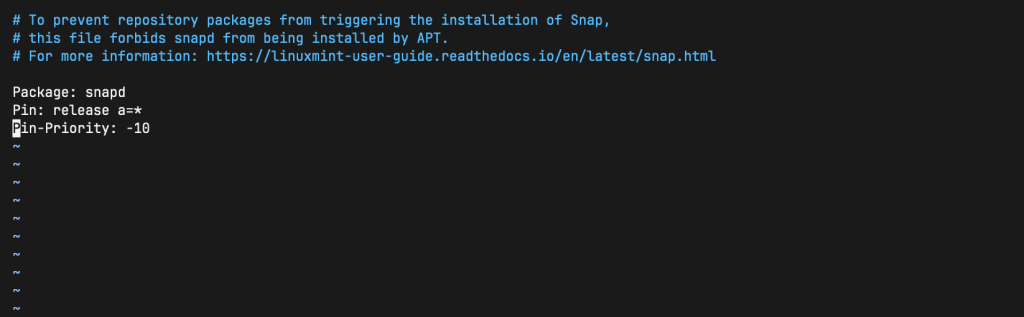
To enable snap support, either delete nosnap.pref file or comment out the lines of code in the file. To completely remove the file, run the command below:
sudo rm /etc/apt/preferences.d/nosnap.prefIn my case, I commented out the lines of code so that the file is as shown.
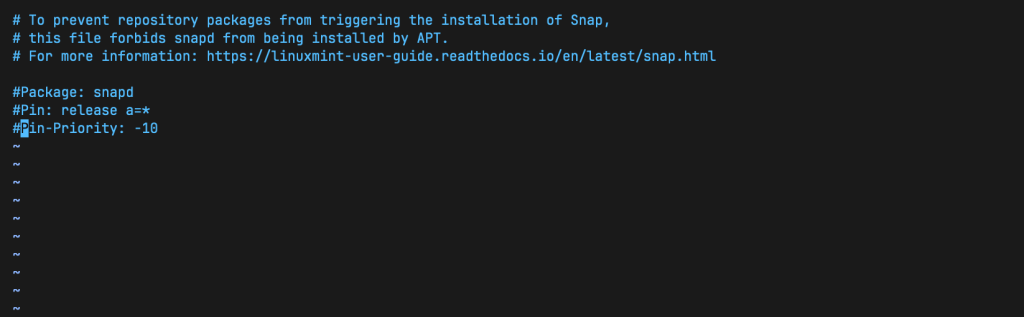
After commenting, press cntrl + x, followed by Y then Enter to save the changes Enter to save the changes.
Install Snapd in Linux Mint 22
After deleting the file or disabling the codes in the file, you can now install snapd normally in your Mint 22.
sudo apt install snapd -ySnapd installation will run to completion and you can verify by checking status or version. Run the below command to check the installed snapd version
$ snap version
snap          2.72+ubuntu24.04
snapd         2.72+ubuntu24.04
series        16
linuxmint     22.1
kernel        6.8.0-51-generic
architecture  amd64
To check snapd status, run the command as shown below:
sudo systemctl status snapdInstall snap packages on Linux Mint 22
It is time to use snap to install packages in your Linux Mint 22.
snap help command
The help command allows to see command options to use with snap.
snap --help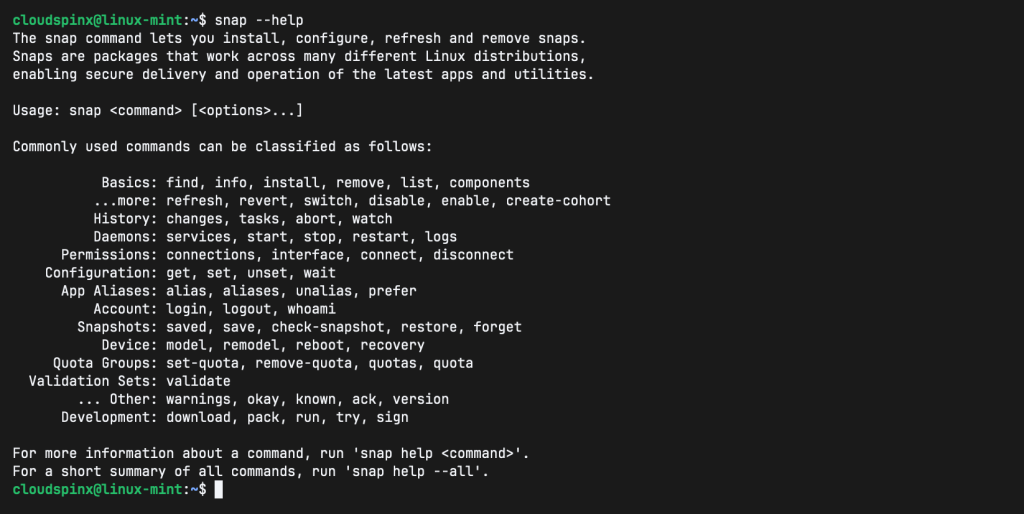
Use find command to search and install packages with snap:
snap find <package-name>
snap install <package-name>
Find and install chromium with snap
snap find chromium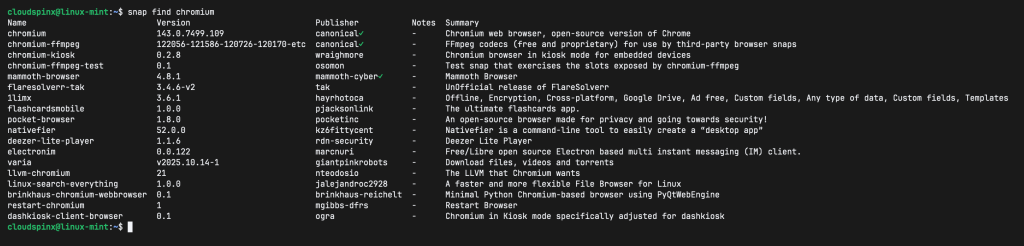
Now install chromium with snap
sudo snap install chromiumChromium will be downloaded and installed.
Disable Snap Support in Linux Mint 22
If you do not wish to leave snap support enabled in your Linux Mint 22, you can easily disable using the nosnap.pref file. If you only commented the lines of code in nosnap.pref file, open it, remove the comments and save the file.
If you had deleted, create the same file in the same path and save it. This has been a guide to install and use snap in Linux mint 21 and I hope it has been informative.
Check more guides below