
Upgrading the Fedora system from one release version to the next release version is a very important process that is critical for users and system administrators. The new release version of Fedora, Fedora 43, is fully packed with a set of interesting new features, enhanced performance capabilities, and a list of new software packages that all users must familiarize themselves with to ensure that they can keep their work running at the highest possible level of efficiency.
Assuming you are already using Fedora 42 and you intend to upgrade to the new release version, Fedora 43, it is highly advisable that you follow this step-by-step tech tutorial carefully, as doing so will ensure a smooth and error-free experience when upgrading to the new release.
Prerequisites
Please make sure that your system meets the following requirements before proceeding with the upgrade:
- Backup Your Files: It is never incorrect to backup your crucial files and data before you proceed with the upgrade process. You can use utility tools like rsync, Deja Dup, or external disks for backing up your important files.
- Upgrade Fedora 42: Your system must be updated fully to the recent Fedora 42 packages prior to the upgrade. It is in order for the process not to experience any issues since old packages may lead to conflicts.
- Ensure Sufficient Disk Space: You need disk space, especially while downloading new packages. Ensure that in your system, there is enough disk space for about 10-15 GB.
- Utilize the dnf check command in an effort to make sure your current system is problem-free.
Fedora 43 New Features
Some key features shipped in Fedora 43 release are as listed below.
- GNOME 49: Fedora 43 workstation comes with GNOME 49 with the latest features and benefit from an array of system enhancements!. Fedora 34 also completely removes the GNOME X11 packages from the repositories, and all users will be migrated to the GNOME Wayland session.
- RPM 6.0: In Fedora 43, RPM is updated to version 6.0, with major security improvements as OpenPGP Keys which are now referred to using fingerprints rather then Key IDs. It’s important to note that while RPM 6.0 supports v6 packages, Fedora still uses v4 by default.
- Python 3.14: With Fedora 43, Python feature a major ugrade to version 3.14, which is the latest major release of Python at the time of writing this article.
- Linux Kernel 6.17: Fedora 43 features the Linux Kernel 6.17, which brings major updates to the supported hardware and improves performance.
- Anaconda WebUI: Anaconda WebUI is now the default installer for Fedora Spins, and Editions. It’s been in use by previous Fedora editions but in Fedora 43, it’s been upgraded to default installer.
Upgrade to Fedora 43 from Fedora 42 Server / Workstation
Confirming that we are running Fedora 42:
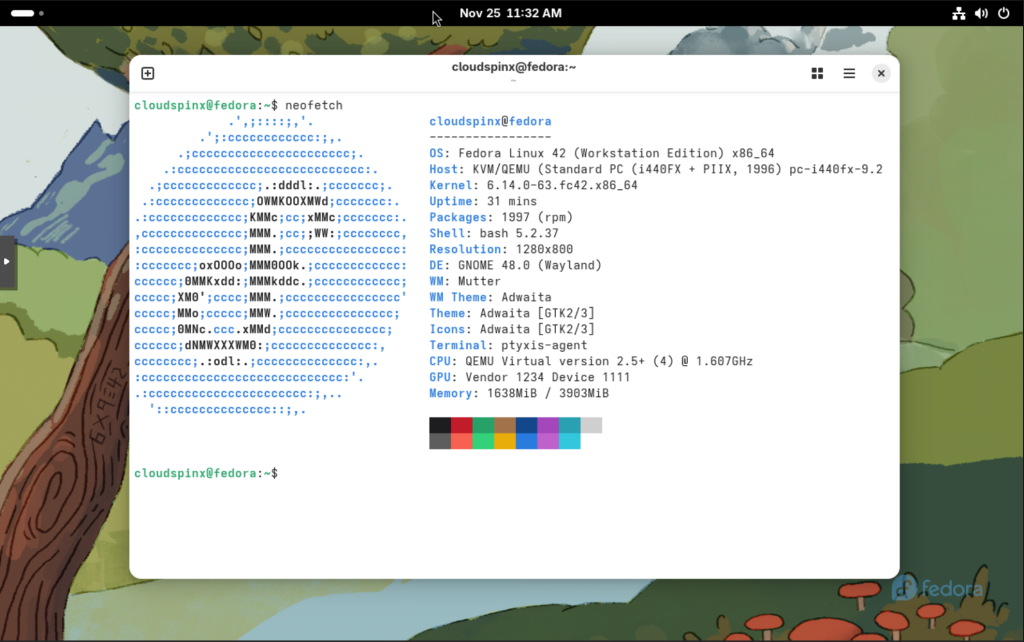
Let’s begin by running the following commands to ensure that your system is in line with the prerequisites:
sudo dnf update --refresh
sudo dnf upgrade --refresh
sudo dnf check
Step 1: Install the dnf-system-upgrade Plugin
Fedora provides an incredibly handy plugin in the form of the dnf system upgrade plugin, which really makes the whole process of system upgrade much easier and simpler.
Use the following command to install the plugin:
sudo dnf install -y dnf-plugin-system-upgradeThis plugin specifically aims to improve and streamline the process of upgrading by undertaking the task of dealing with all the dependencies, downloading any necessary packages in an efficient manner, and skillfully managing the installation process as a whole.
Step 2: Download Fedora 43 Packages
At this stage, having installed all the necessary tools that you will need for the steps that follow, it is now the right time to go ahead with the downloading process for the Fedora 43 packages. For the sake of completing the process, you should run the command given below:
sudo dnf system-upgrade download --releasever=43 --allowerasing--releasever=43: This command requests the dnf package manager to prepare for the upcoming upgrade process that will bring the system up to Fedora release 43.
--allowerasing: This option gives the dnf package manager the ability to remove packages that are likely to conflict or be incompatible with the new version of Fedora. You might want to use this option if you are okay with the possibility of conflicting packages being automatically removed from your system for the sake of a smoother upgrade.
The system will look for any available updates and download all the packages necessary for the installation of Fedora 43. It may take a while based on your internet connection and the count of packages.
Sample Output:

Then Agree to import the Fedora 43 GPG key:
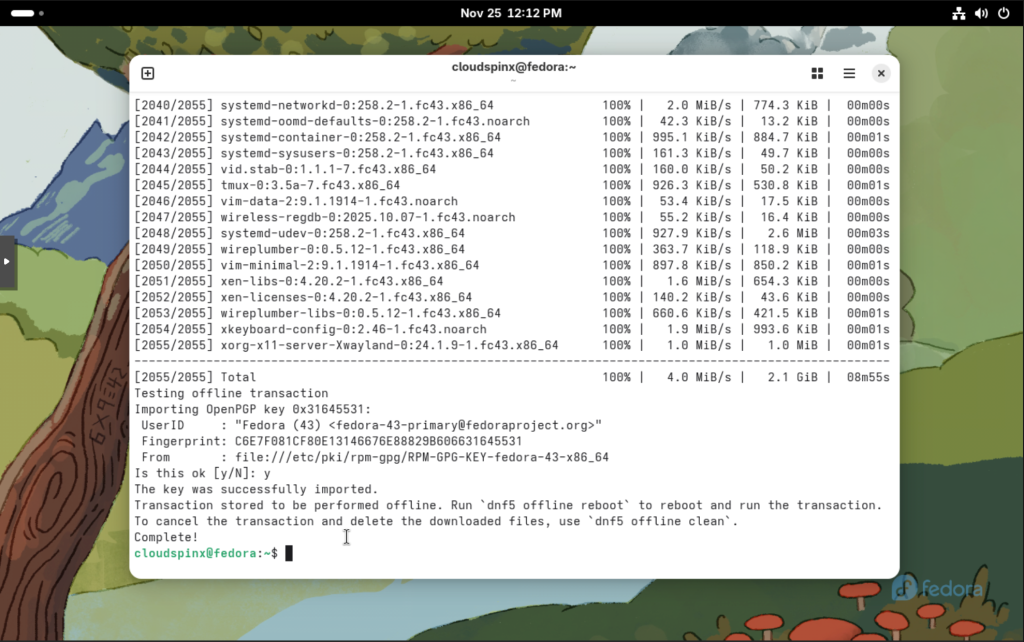
If any errors occur in this stage (e.g., missing repositories or conflicting packages), follow the error messages in order to solve them before continuing
Step 3: Perform the Upgrade
Once the upgrade download is complete, it’s time to reboot your system and trigger the upgrade process. Run the following command:
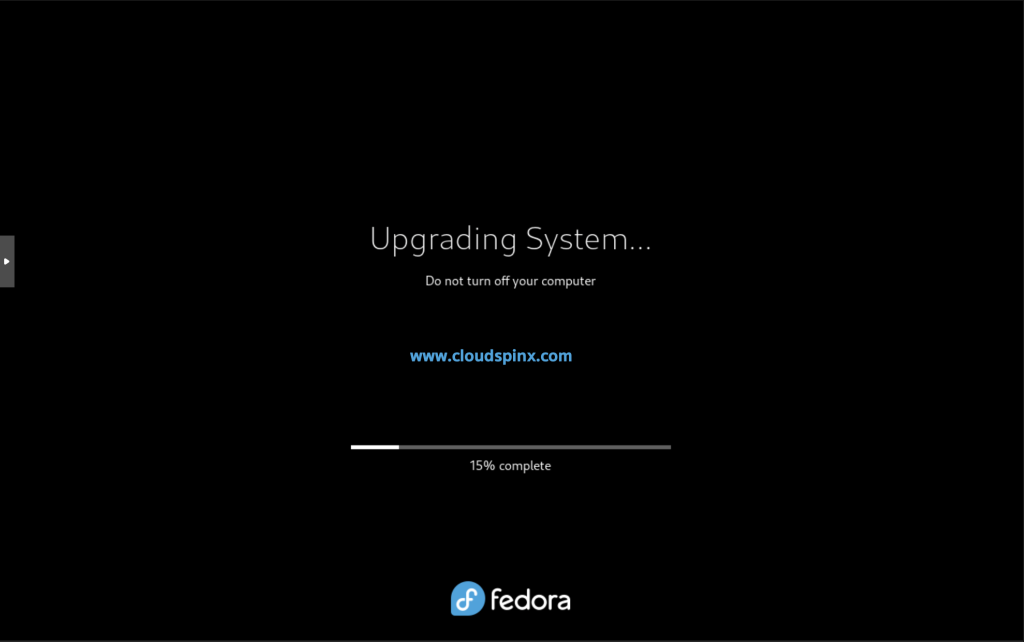
sudo dnf system-upgrade rebootThis will reboot your machine into the upgrade process running in a console terminal. The dnf system-upgrade tool will begin installing the downloaded Fedora 43 packages. The system will then follow the following steps in order to update the packages, including removing the old packages and adding new packages.
Agree to reboot when prompted:
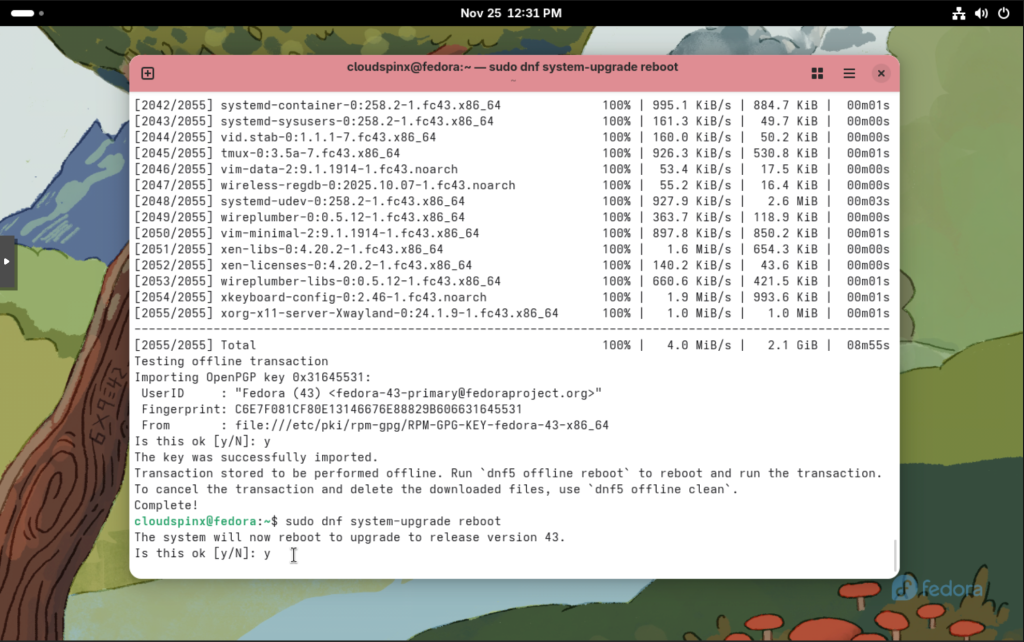
The upgrade process begins. Be patient, it may take a while:
Step 4: Reboot into Fedora 43
Once the upgrade process completes, your system will reboot a second time into the updated release version of Fedora Linux. This reboot will complete the upgrade to Fedora 43.
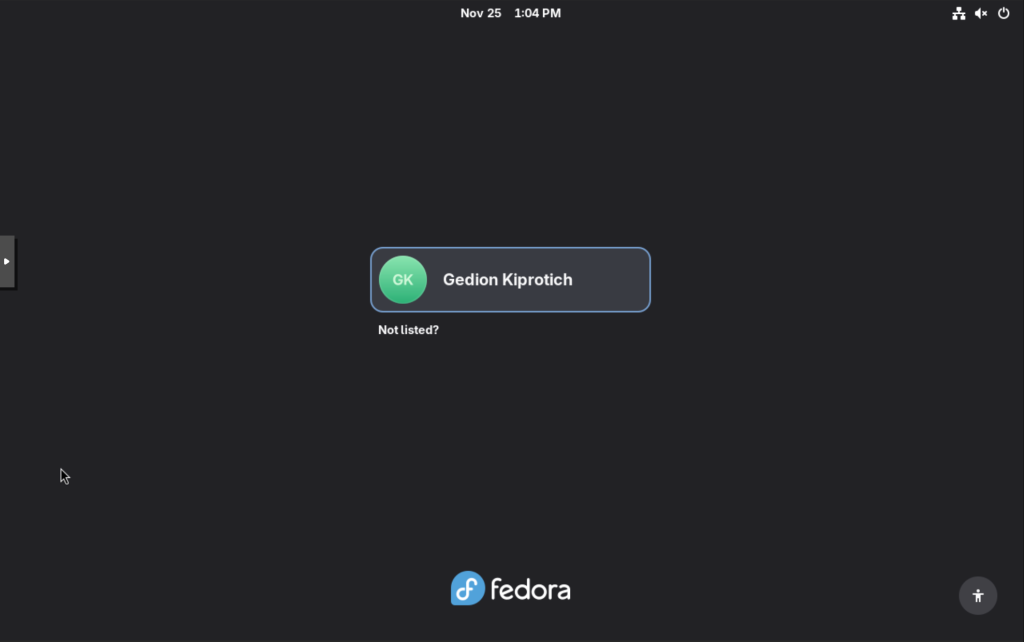
After the system has restarted, you can ensure the update is complete by checking the Fedora version.
neofetch
Step 5: Post-Upgrade Cleanup
Fedora retires packages in every release. Reasons may be many; the packages get outdated, the upstream project may die, or the maintainer might leave. Fedora doesn’t carry those packages any further; yet, they still manage to live on your system. The packages won’t be updated. It is very strongly suggested that you remove them.
Run the following commands to remove these packages from your system:
sudo dnf install remove-retired-packages
remove-retired-packages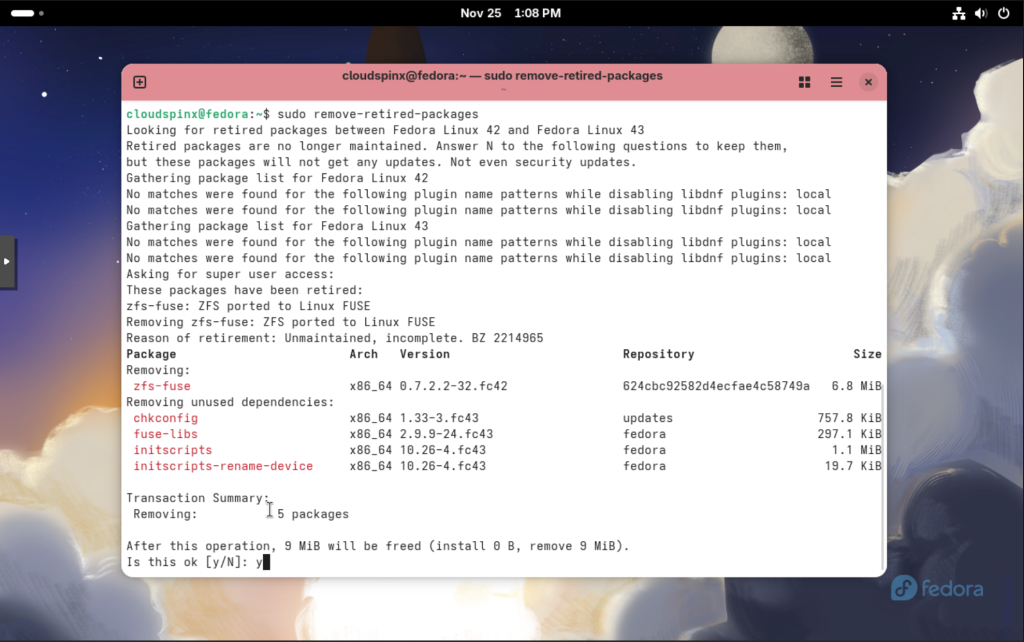
Conclusion
Upgrading from Fedora 42 to Fedora 43 is actually an almost simple and straightforward process if you use the dnf system upgrade tool, specifically for the said process. Following all the steps below with extreme care, you can be assured that your system gets all the new features, crucial security updates, and optimizations that the new release brings along.
Happy upgrading, and enjoy the new features in Fedora 43!
More guides: